


File transfer platforms play a major role in 2026 because remote and hybrid teams need quick access to shared files across locations.
Cloud file sharing helps people upload, edit, sync, review, and deliver work without relying on email attachments, local drives, or scattered storage habits.
Speed, security, ease of use, large file support, privacy, compliance, and simple sharing now shape the buying decision.
Some platforms focus on photo delivery, some focus on massive media transfers, and others work best for daily collaboration, private sharing, file syncing, or simple one-time sends.
Therefore, we will provide you with our list of the best platforms for simple, safe file transfers.
1. Picstack – Best for Photographers
Picstack: Create and share branded photo galleries with real-time trackinghttps://t.co/eRWkfWhfYp
— BetaList (@BetaList) June 9, 2026
Picstack is built for photographers who need to upload, organize, and deliver photo galleries to clients and guests.
Its workflow focuses on client-ready presentation instead of basic file sending.
A simple 3-step process keeps delivery easy: upload photos, customize the gallery, and share the gallery link.
The simplicity makes it the best way to share photos with clients out there.
Also, it helps that the setup works well for photographers who need to deliver images quickly while keeping galleries organized and professional.
- Drag-and-drop uploads
- Bulk uploads
- Branded galleries
- Subgalleries
- Custom subdomains
- Personalized gallery URLs
Real-time view and download tracking show client activity.
Smart notifications also alert photographers when clients interact with galleries, which helps with follow-ups and delivery management.
European data centers and GDPR-compliant design keep data under EU jurisdiction. That can help photographers who handle client images and need privacy-conscious storage.
Picstack plan details are simple for new and active users:
- Free plan: 1 GB storage and up to 5 galleries
- Standard plan: 100 GB storage and unlimited galleries
Best for weddings, portraits, corporate events, cars, real estate, sports, and creative photographers.
2. MASV – Best for Large Media Files
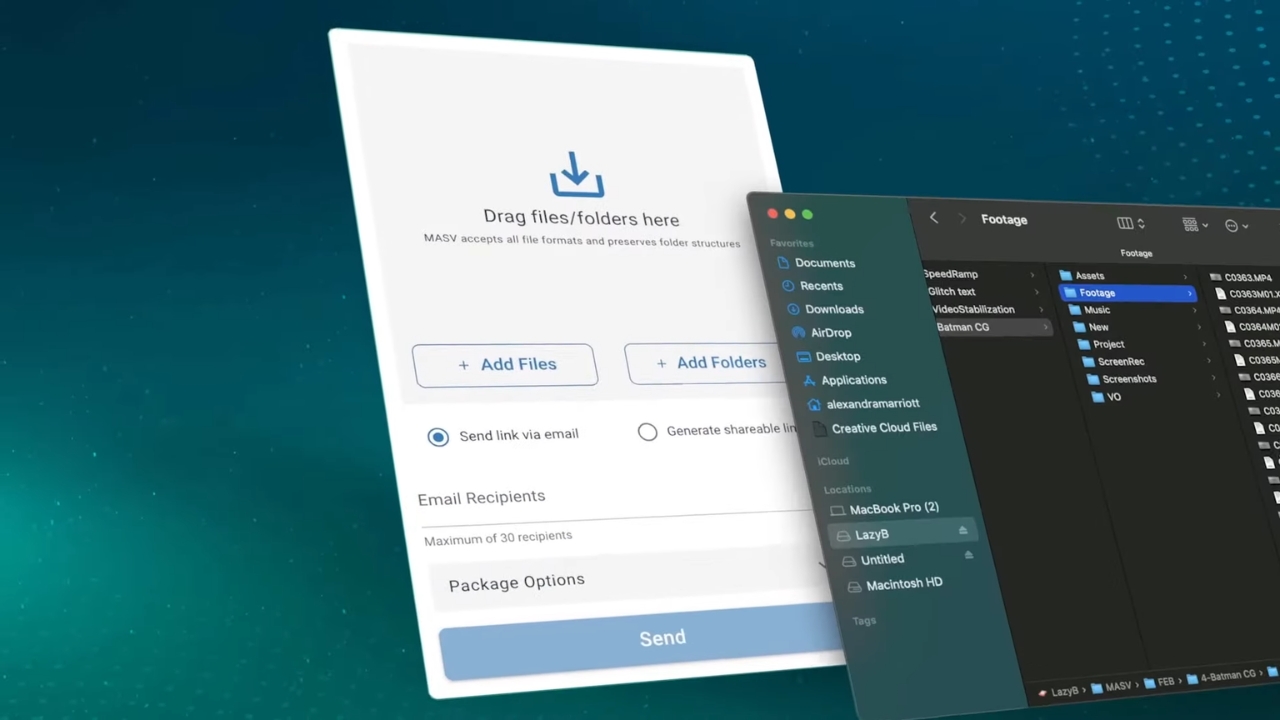
MASV is built for teams that send massive files quickly and securely.
It is especially useful for media, video, post-production, broadcast, AI, and other data-heavy workflows.
MASV describes its platform as an intelligent managed file transfer option focused on speed, security, reliability, and compliance.
That focus fits teams that need fast, large-file movement without heavy IT setup.
- No file size limits
- Zero IT setup
- Automatic retries
- Checkpoint restart
- No-code automation
- Portals
- Watch Folders
MASV says it is one of the only 10Gbps file transfer solutions on the market.
That speed can matter when teams handle video projects, production assets, large datasets, or urgent client deliveries.
Browser-based portals can move files directly to cloud or on-prem storage.
That approach can reduce local workstation exposure and help files reach approved storage locations faster.
Best for teams that regularly move very large files and need fast, secure transfers without complex IT work.
3. Google Drive – Best for Everyday Collaboration
Google Drive is a cloud storage and file-sharing platform with a familiar interface and broad everyday use.
Free storage includes 15 GB, with scalable plans for individuals, teams, and enterprises. That makes it easy to start and flexible enough for growing teams.
Google Workspace integration is its main strength. Docs, Sheets, and Slides support real-time collaboration, comments, version history, and shared editing.
Teams can work on the same document without sending multiple versions back and forth.
- Written documents
- Spreadsheets
- Slide decks
- Shared folders
- Team comments and approvals
Advanced sharing controls help users manage viewing, commenting, and editing access.
Web, mobile, and desktop access also make files easy to reach across devices.
Possible drawback: Google Drive data may be stored in US data centers, which can create privacy concerns for sensitive industries.
Best for students, startups, remote teams, educational institutions, and businesses that need real-time collaboration.
4. Dropbox – Best for File Syncing

Dropbox is known for easy syncing, shared folders, and simple external file links. Its strength lies in keeping files accessible and updated across devices.
Key features include device syncing, offline access, Dropbox Paper, file versioning, password protection, and expiring links.
These tools help users share files safely while keeping work available on laptops, desktops, phones, and tablets.
- Offline file availability during travel
- Shared folders for client work
- Versioning for files that change often
- Recovery options after accidental edits or deletions
Dropbox also offers strong search, file recovery, third-party app integrations, and flexible sharing controls.
Versioning and recovery can help teams restore earlier files when mistakes happen or content changes over time.
Possible drawback: free storage is limited, and advanced features require higher-tier plans.
Best for freelancers, creative agencies, small and midsize businesses, and teams that need dependable file sync.
5. OneDrive – Best for Microsoft 365 Users
View this post on Instagram
OneDrive fits businesses already using Microsoft 365, Office apps, Teams, and Windows.
Its value comes mainly through tight connections with Word, Excel, PowerPoint, Teams, and Windows devices.
Free storage includes 5 GB, with more storage available through Microsoft 365 plans.
For organizations already paying for Microsoft 365, OneDrive often fits existing workflows with little extra setup.
Word, Excel, and PowerPoint support real-time collaboration through OneDrive. Users can co-edit files, manage permissions, and access version history.
- Office file co-editing
- Teams access
- Windows device backup
- Mobile and desktop access
- Version history for business documents
Additional features include automatic Windows device backup, secure sharing, password protection, link expiration, mobile access, and desktop access.
Ransomware detection and file recovery are also major strengths.
Best for Microsoft-focused teams, schools, and organizations.
6. Tresorit – Best for Privacy
Tresorit is a privacy-first file sharing platform with zero-knowledge, end-to-end encryption. Its security model is built for users who need stronger protection for confidential files.
- Finance documents
- Legal documents
- Sensitive business records
- Client contracts
- Executive materials
Tresorit fits security-conscious businesses that place privacy ahead of maximum transfer speed. It can work well for legal folders, financial records, client documents, contracts, and executive materials.
Zero-knowledge privacy helps protect files against provider-side access.
Possible drawback: large uploads of 100 GB or more can be much slower because end-to-end encryption adds processing overhead.
Best for legal teams, finance teams, consultants, executives, and security-conscious businesses.
7. WeTransfer – Best for Quick One-Time Transfers
@wetransferWhen on the go, simplify your creative process with WeTransfer. Get your work sent off first thing and enjoy that morning cuppa.
WeTransfer is built for simple file sending without complicated setup.
Basic transfers do not require registration, which makes it convenient for quick client sends and casual sharing.
- Free transfers: up to 2 GB
- Pro transfers: up to 200 GB
Premium features include password protection, custom branding, and web and mobile support. Recipients do not need an account, which helps with low-risk ad-hoc sends.
WeTransfer works best when file sharing is occasional and simple, such as client previews, mood boards, social media edits, or one-time delivery tasks.
Possible drawback: higher-level compliance, cloud integrations, and transfer automation are limited.
Best for casual transfers, client sends, mood boards, social media edits, and simple one-time file sharing.
What to Look for in a File Transfer Platform
Fast upload and download speeds matter most when teams send large creative files, business documents, videos, images, or client deliverables.
Delays can slow approvals, production schedules, and client handoffs.
Speed should be judged by real workflow needs, not just basic upload claims:
- Large photo sets may need bulk upload support
- Video teams may need transfer recovery after connection drops
- Business teams may need quick access across desktop, mobile, and browser use
Security should be easy to apply. Strong platforms offer secure links, encryption, password protection, link expiration, and clear permission settings.
Business users should also look for controls that help manage access after a file has been shared:
- Viewer, commenter, editor, and downloader roles
- Admin visibility into file activity
- Link controls that limit unwanted forwarding
- Logs that show who opened, edited, saved, or downloaded a file
Compliance support can matter when files include regulated or sensitive data.
GDPR, NIS2, ISO 27001, SOC 2, and industry-specific standards can affect which tool works for legal, finance, healthcare, enterprise, or client-facing use.
Collaboration features add value for teams that work on files together.
Real-time editing, comments, version history, desktop sync, mobile access, and workflow integrations can reduce back-and-forth messages and duplicate files.
Complicated tools often push users toward unsafe shortcuts. Secure sharing works best when each step is fast, clear, and easy for every user.
A Wrap Up

A strong file transfer platform should match the way files move through a team or client workflow.
File size, transfer frequency, privacy needs, collaboration style, and compliance requirements should guide the final choice.
Best choice depends on file size, file sensitivity, user access, workflow complexity, and collaboration needs.
Good file transfer software should make sharing fast, secure, and simple without adding unnecessary steps.